








Screen mirroring: view and control your RS90 from Haptique Config
Available with RS90 app 4.1 or later and a version of Haptique Config that includes the RS90 Screen button. Screen sharing lets you see the RS90 display and send taps and swipes from your phone.
Before you start
- Complete the RS90’s normal first-time setup and account pairing first.
- Connect the RS90 and your phone to the same Wi-Fi network. Guest networks that isolate devices can prevent the connection.
- Keep the RS90 screen awake during sharing.
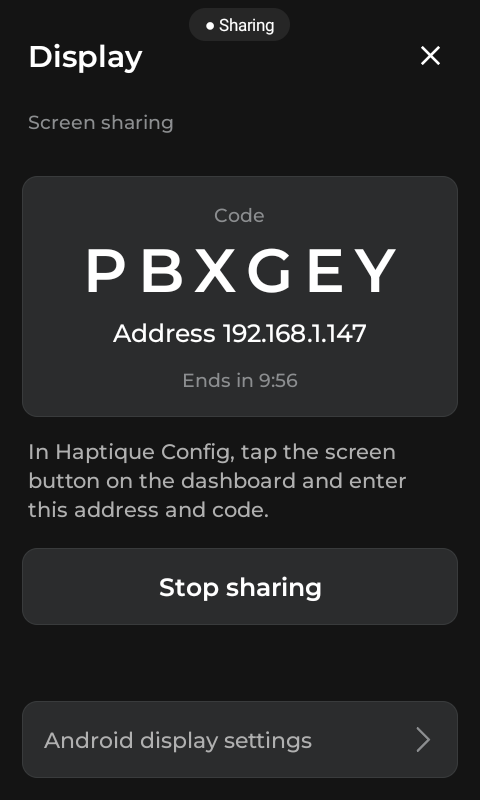
This is a separate, temporary screen-sharing connection. Use the address and code shown on the Display page; these are not the account-pairing QR or verification code.
1. Start sharing on the RS90
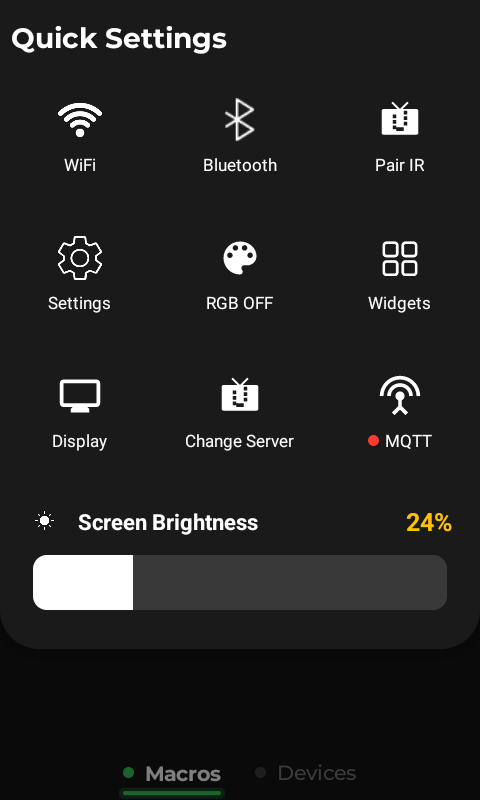
- From the OPUS 1 home screen, swipe down or tap the down-arrow button to open the quick menu.
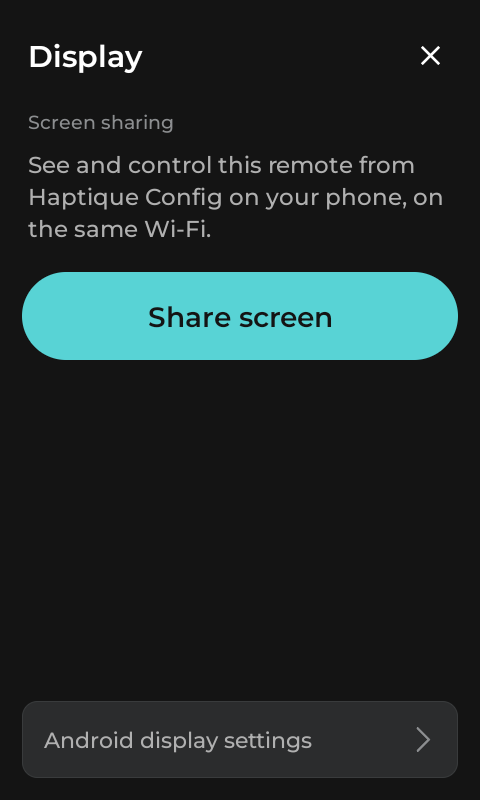
- Tap Display.
- Tap Share screen. The page shows an Address, a Code and a countdown. Leave sharing running while you connect your phone.
2. Connect Haptique Config
- Open Haptique Config on your phone and go to its dashboard.
- Tap the screen icon (two overlapping rectangles), labelled RS90 Screen.
- Enter the numeric IP address shown on the RS90, using dots between the numbers. Enter the current sharing code exactly as shown.
- Tap Connect. The RS90 screen appears on your phone. Tap and swipe in the mirrored screen to control the remote.
Use your own RS90’s current address and code. Any address or code in the screenshots is only an example and is no longer active.
3. Stop sharing
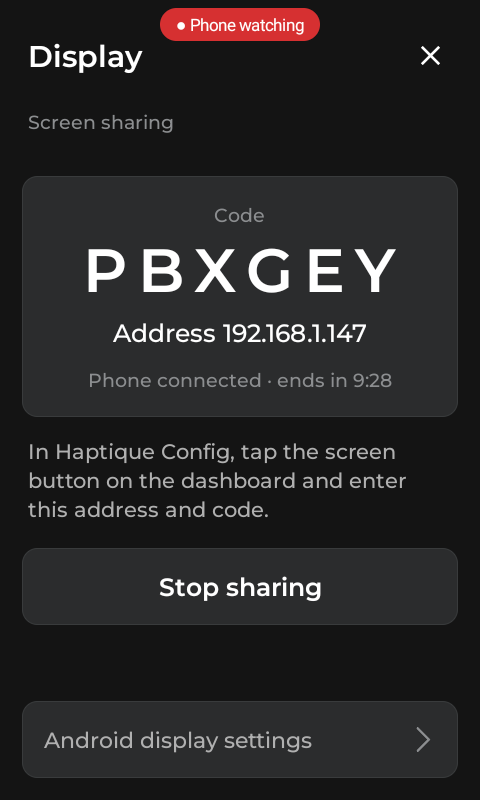
On the RS90, return to Display and tap Stop sharing. Sharing also ends when the RS90 screen turns off or after the 10-minute countdown. Closing the viewer ends viewing; use Stop sharing on the RS90 to end the sharing session immediately.
To connect again, tap Share screen for a new code. If Haptique Config tries an old saved connection, use Change when available and enter the current address and code.
If it does not connect
- No RS90 Screen button: update Haptique Config to a version that includes screen sharing.
- Cannot reach the RS90: confirm both devices are on the same Wi-Fi, the address is correct and sharing is still on. Check guest-network or client-isolation settings.
- Code does not match: use the current code on the RS90’s Display page. A new session uses a new code.
- Sharing stopped after wrong codes: tap Share screen again and use the new code.
- Screen went off or time expired: wake the RS90 and start a new sharing session.

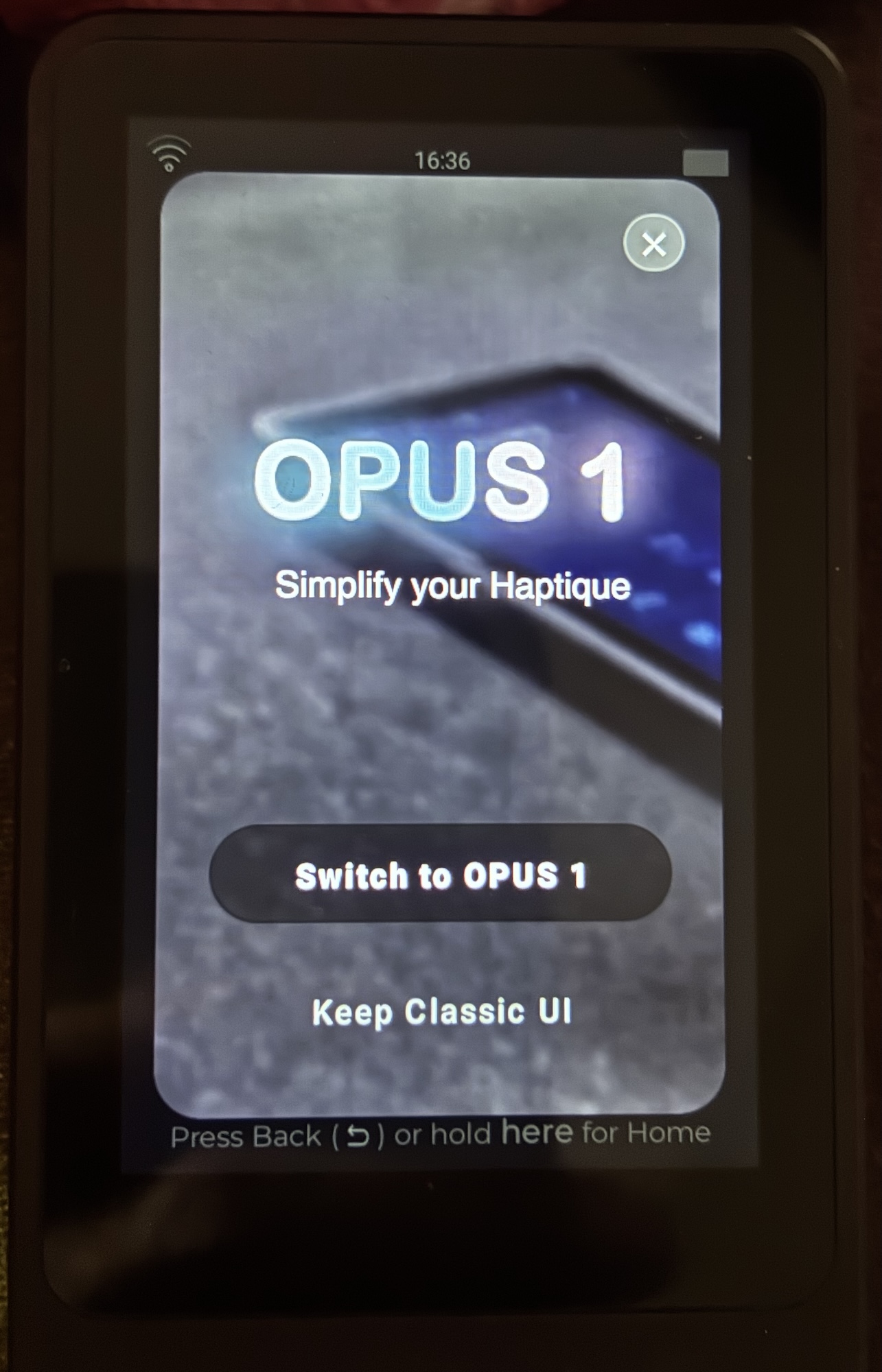
OPUS 1: RS90 app 4.0
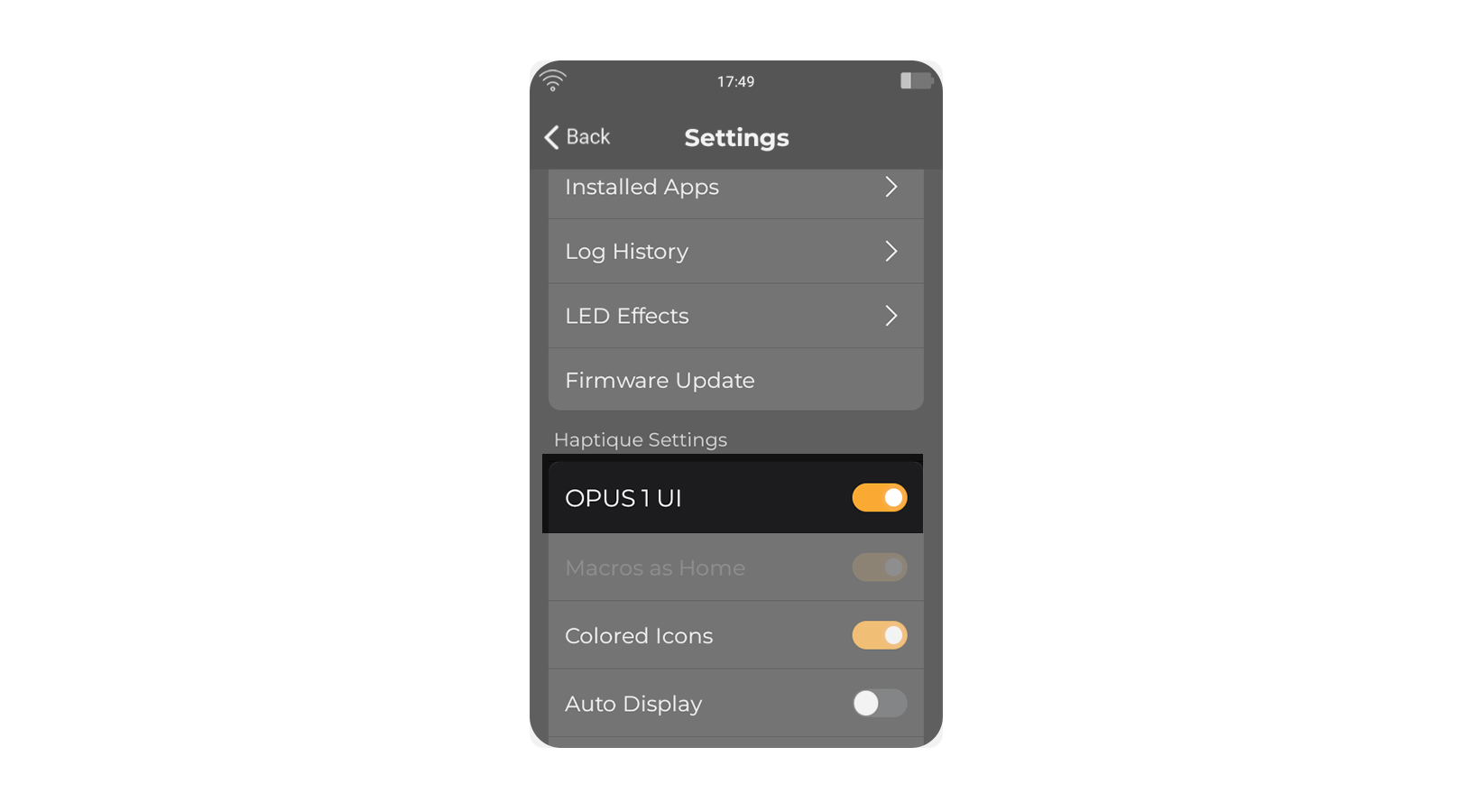
OPUS 1 is the alternative home interface for your Haptique RS90. Enable or disable it in Settings; the standard RS90 interface remains available.
Update without starting over
Refresh the RS90 itself, or use its Settings > Sync control, to check for the current app update and configuration. If an update is offered, follow the on-screen instructions. Version 4.0 is an optional app update, not a system firmware update. You may keep using your installed version and update later.
Your existing Macro names, logos, key mappings, custom screens and device setup carry over. Do not delete your Sequences, recreate your Macros, uninstall the app or factory-reset the remote just to update.
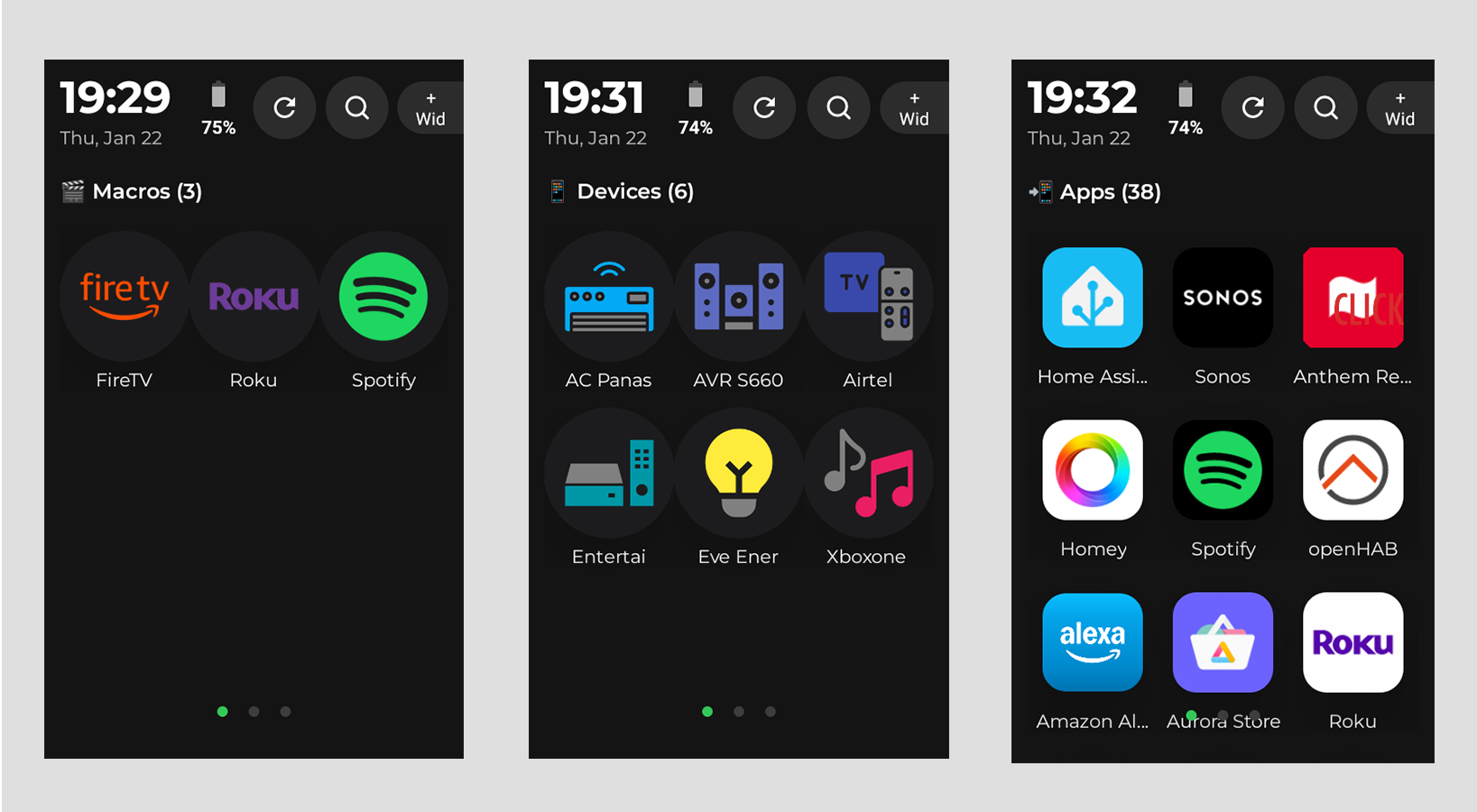
Your home pages
- Macros: your favourite routines and their controls.
- Devices: direct access to configured device controls.
- Apps: Android apps installed on the RS90. Show or hide this page with the Apps page switch in Settings.
- Widgets: an optional page for multiple widgets. Turn on Widgets page in Settings to add it.
Visible pages depend on your configuration. Rooms remain available in the standard interface and configurator; switching to OPUS 1 does not delete your Rooms.
Add and manage widgets
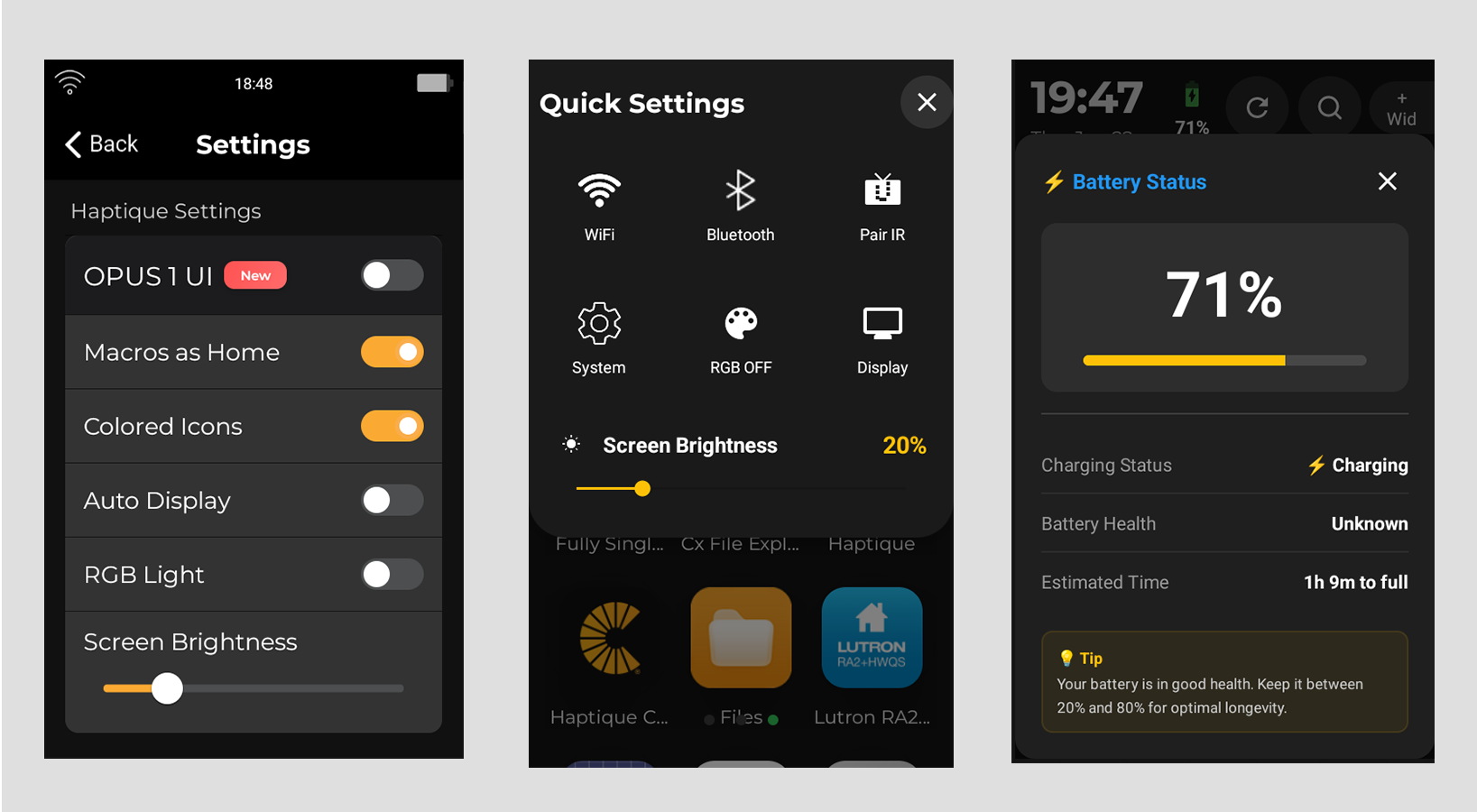
- Swipe down from the top of the home screen and open Settings.
- Enable Widgets page, return home and open the Widgets tab.
- On an empty page, tap Add widget, choose a widget and complete any setup or permission prompt.
- To add another, change or remove a widget, press and hold an existing widget and choose the corresponding option.
The Widgets page supports up to six widgets. Its layout is separate from the single home-screen widget. Available widgets depend on installed apps and configured services. Media widgets now include BluOS, WiiM, Kaleidescape, Zidoo, Roku and Spotify. Playback and physical-button behaviour depend on the active widget and supported device controls.
Bluetooth quick controls
Swipe down from the top of the home screen, then tap the Bluetooth tile to open Bluetooth controls and follow the pairing instructions for your supported device. Supported Bluetooth remote-control connections include Apple TV, Fire TV and Samsung Bluetooth devices. These controls are separate from their network/IP integrations.
Macros and custom controls
Manage routines in the Haptique configurator or web app. Existing Sequence-based Macros are carried into the new Macros system with their setup, including favourites. Sync the RS90 after saving changes. You do not need to rebuild an existing routine.
Tap a Macro tile to open its options. Use Custom UI there to edit its custom controls without running the Macro first. Continue to use its control page, device pages and configured key mappings as before.
Tap, hold and return home
Tap tiles for their normal actions. Press and hold a widget to manage it. Long-press the physical Home key to return to the home screen. OPUS 1 is not limited to single-tap actions.
The 4.0 guided tour
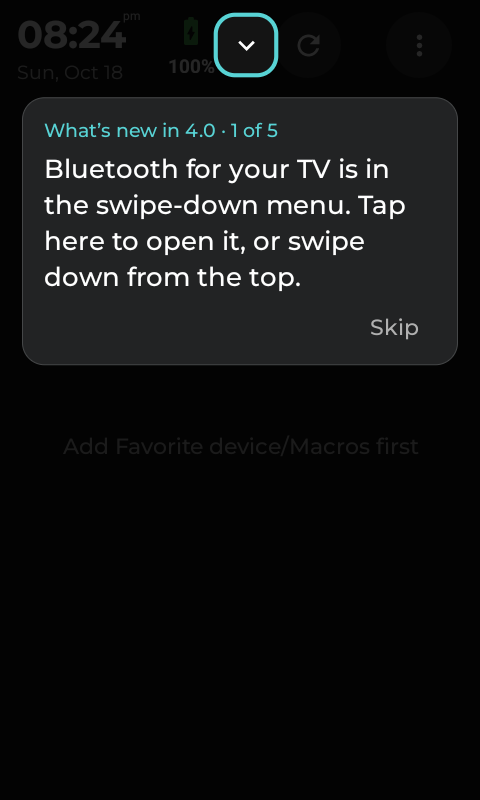
After updating an existing installation, a short tour may highlight Bluetooth quick controls, Settings and the Widgets page. Tap the highlighted control to continue or Skip to leave the tour. A fresh installation may not show the update tour.
Switch back to the standard interface
Open Settings and disable OPUS 1. Your configured devices, Rooms and Macros are not deleted when you switch interfaces.
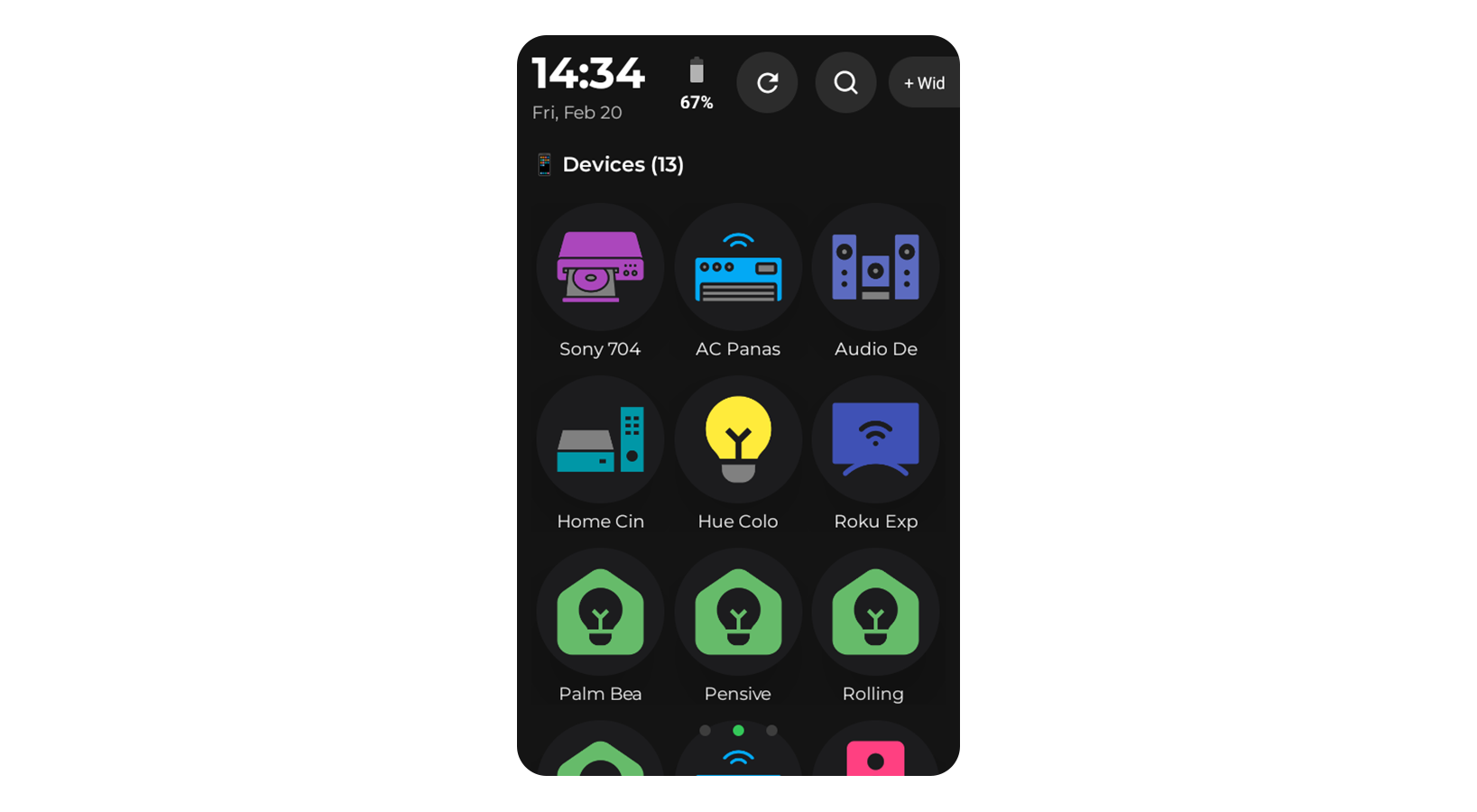
Devices
The Devices page in OPUS 1 shows the favourite devices configured for your RS90. Each device appears as a tile displaying its name and icon. Tapping a tile opens the device control screen for that device directly — no extra steps.
Use the Haptique config app or web configurator to set up device integrations, save their controls and choose favourites for your RS90. Sync the remote after saving changes. The OPUS 1 Devices page shows favourite devices rather than every entry in your device pool.
Bluetooth pairing on the RS90 in 4.0
Supported Bluetooth remote-control devices can also be paired directly on the RS90. Swipe down from the top of the home screen, tap the Bluetooth tile and follow the on-screen pairing instructions for a supported Apple TV, Fire TV or Samsung Bluetooth device. Keep the target device ready to pair and confirm any prompts on it.
Bluetooth remote control is separate from a device’s network/IP integration and its favourite tile. Pairing over Bluetooth does not replace network setup in the configurator.
Check that you are using the account linked to this RS90, that the device is configured and marked as a Favourite for this remote, then use Settings → Sync or refresh the RS90. Other configured devices remain in the device pool; do not delete or recreate them just because a favourite tile is missing.
Opening a Device Control Screen
- Go to the Devices page on the RS90.
- Tap the tile for the device you want to control.
- The device control screen opens immediately, showing all the controls available for that device — buttons, sliders, navigation pads, or whatever is applicable to its device type.
Device Control Screen
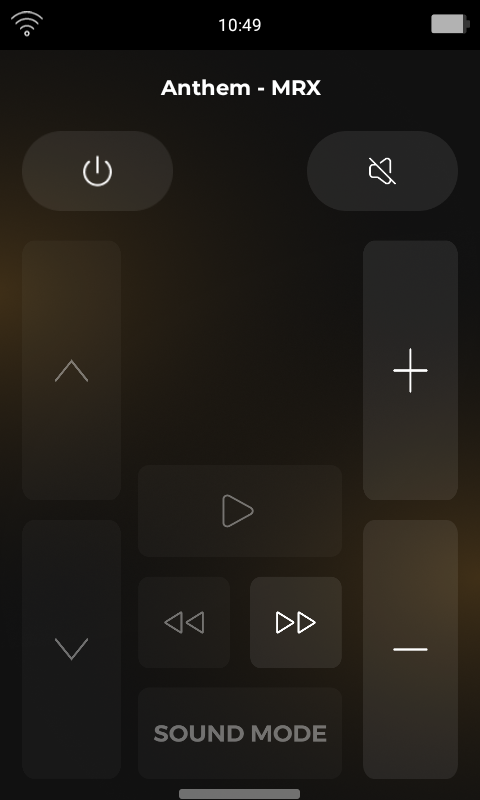
The device control screen is tailored to each device type. Depending on the device, you may see controls such as:
- Power — turn the device on or off
- Volume & Mute — adjust or silence audio output
- Input / Source — switch between input channels
- Navigation Pad — directional controls and select button
- Media Controls — play, pause, skip, rewind
- Channel — channel up/down and number entry
- Brightness & Colour Temperature — for supported lighting devices
- Extra Commands — any additional commands configured for that device
An IR TV will show different controls to a Sonos speaker or a smart light. The RS90 automatically loads the right control layout for each device based on how it was configured in the config app.
A short Home or Back press may send that command to the selected device, depending on the integration and saved key mapping. Use Home long-press when you want to leave the controls rather than send a command to the device.
Widgets page and media widgets in RS90 4.0
Keep useful controls together on a dedicated Widgets page in OPUS 1. Add up to six widgets, stacked vertically, and scroll to reach the others. This page is separate from the single widget on the home screen and from the control components inside a Macro's Custom UI.
Enable the Widgets page
- Use RS90 app 4.0 and enable OPUS 1 in Settings if you are using the standard interface.
- Swipe down from the top of the home screen and open Settings.
- Turn on Widgets page, return home and select the Widgets tab.
The page is optional. Turning its switch off hides the page; it does not remove your Macros or replace the home-screen widget.
Add, change or remove a widget
- On an empty Widgets page, tap Add widget.
- Choose a widget. Haptique's media widgets appear before widgets supplied by other installed apps.
- Complete any setup or Android widget-permission prompt. Other apps may require their own configuration.
- After adding the first widget, press and hold an existing widget to open Add widget, Change widget or Remove widget.
The large Add button only appears while the page is empty. At six widgets, Add widget is no longer offered; remove one before adding another. Removing a widget removes that placement, not the device integration. Widget placements belong to this RS90 and are not automatically added to your other remotes.
New media widgets in 4.0
- BluOS: track information, available artwork and playback controls for your configured BluOS player. Volume follows the player or its group where supported. Previous/next can be unavailable for radio streams.
- WiiM: current track information and available artwork, play/pause, previous/next and supported volume controls for your configured WiiM player.
- Kaleidescape: current movie information, artwork when available, play/pause and previous/next chapter controls. This widget does not provide AVR volume control.
- Zidoo: current video or music information with supported playback and previous/next controls. Available details depend on what the player reports; this widget does not provide AVR volume control.
- Roku: the active app's name and icon, with play/pause when Roku reports an active media session. It does not show episode or movie metadata. Volume commands are available for Roku TVs, not every Roku streaming player.
- Spotify: current track or podcast information, available artwork and supported playback controls for the linked Spotify account. The source line identifies the active playback device. Volume depends on that device's support; there is no separate Spotify mute control.
Sonos and Roon remain available. You can also choose widgets provided by other apps installed on the RS90, such as a compatible Home Assistant widget. Availability and setup depend on the app providing it.
Connect the source first
Add and configure the corresponding device or service in the Haptique configurator, then sync the RS90. Local-network players must be reachable from the remote. Spotify requires its linked account and Internet connection; start playback on an available Spotify device if nothing is active.
The six new media widgets reuse the synced integrations. In 4.0, each source uses the first matching configured device or account; adding another copy of the same widget does not create a separate room/player selection. Check the source name shown in the widget. Sonos and Roon follow their own configured speaker or zone.
Use the media controls
Tap the artwork to play or pause when supported. If playback is unavailable, it opens the source's controls instead. Tap the track or information area to open the full device-control screen. Use the previous/next arrows when enabled; dimmed arrows mean that action is not available for the current source or content.
Physical playback and volume keys follow the home-screen media source: the live music card takes priority when present; otherwise they use the media widget placed on the home card. They do not broadcast to all widgets or select a widget merely because you last tapped it on the Widgets page. Use each widget's on-screen playback controls, or open its full device screen for other commands.
If a widget is empty or disconnected
- "Isn't set up": add the corresponding integration in the configurator, save it and sync the RS90.
- "Isn't connected": open that device's controls and check its connection, saved address and account authorisation.
- "Nothing playing": the source is idle. Start music or a movie in the source app or device; this is not necessarily a connection failure.
- Missing widget in the picker: check the RS90 app version. Third-party widgets only appear when their provider app is installed and exposes a compatible Android widget.
Media status refreshes while the launcher is visible. Artwork and controls depend on information supplied by each service. Do not delete your Macros, uninstall the RS90 app or factory-reset the remote to add widgets.
Macro Screen
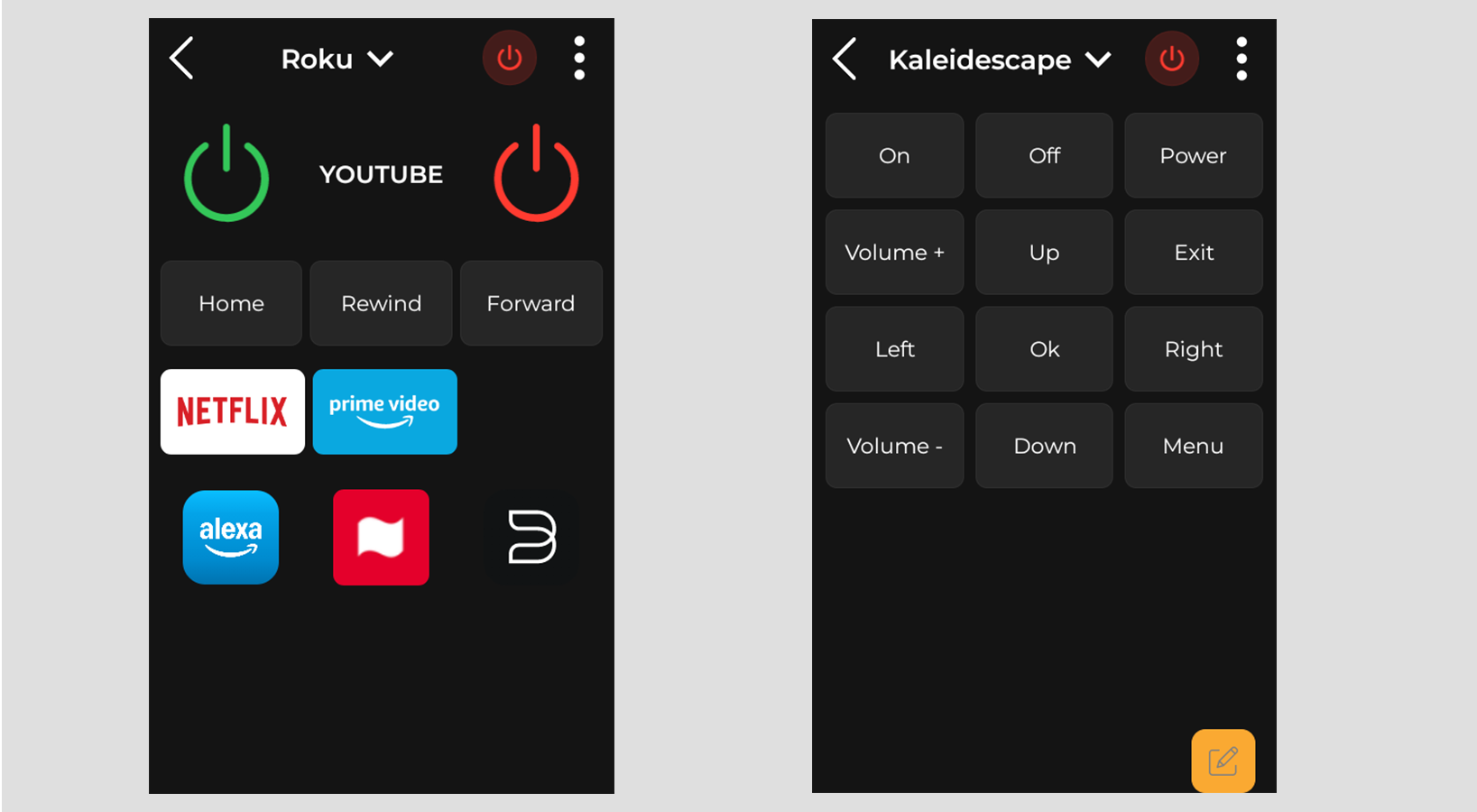
In RS90 app 4.0, tapping a Macro tile in OPUS 1 opens its options. Choose Execute to run the configured routine, or Control Page when available to open its controls without repeating the ON routine. For new Macros, Custom UI and Pages are also available directly from these options, so you can edit the layout without running the Macro first.
The Macro screen is a paged controller for the devices in that Macro. Tap the Macro name / title bar to open the page list and jump to a device page. Its ⋮ options menu gives access to Custom UI, Pages and, for supported IR devices, Fix. Use the Macro's separate power-off control to run its configured OFF routine.
Keep your existing setup: migrated Macros retain their custom screens, key mappings and device-page preferences. Do not recreate or delete the original routine to use these controls.
1. How to Add an Android App to Custom UI
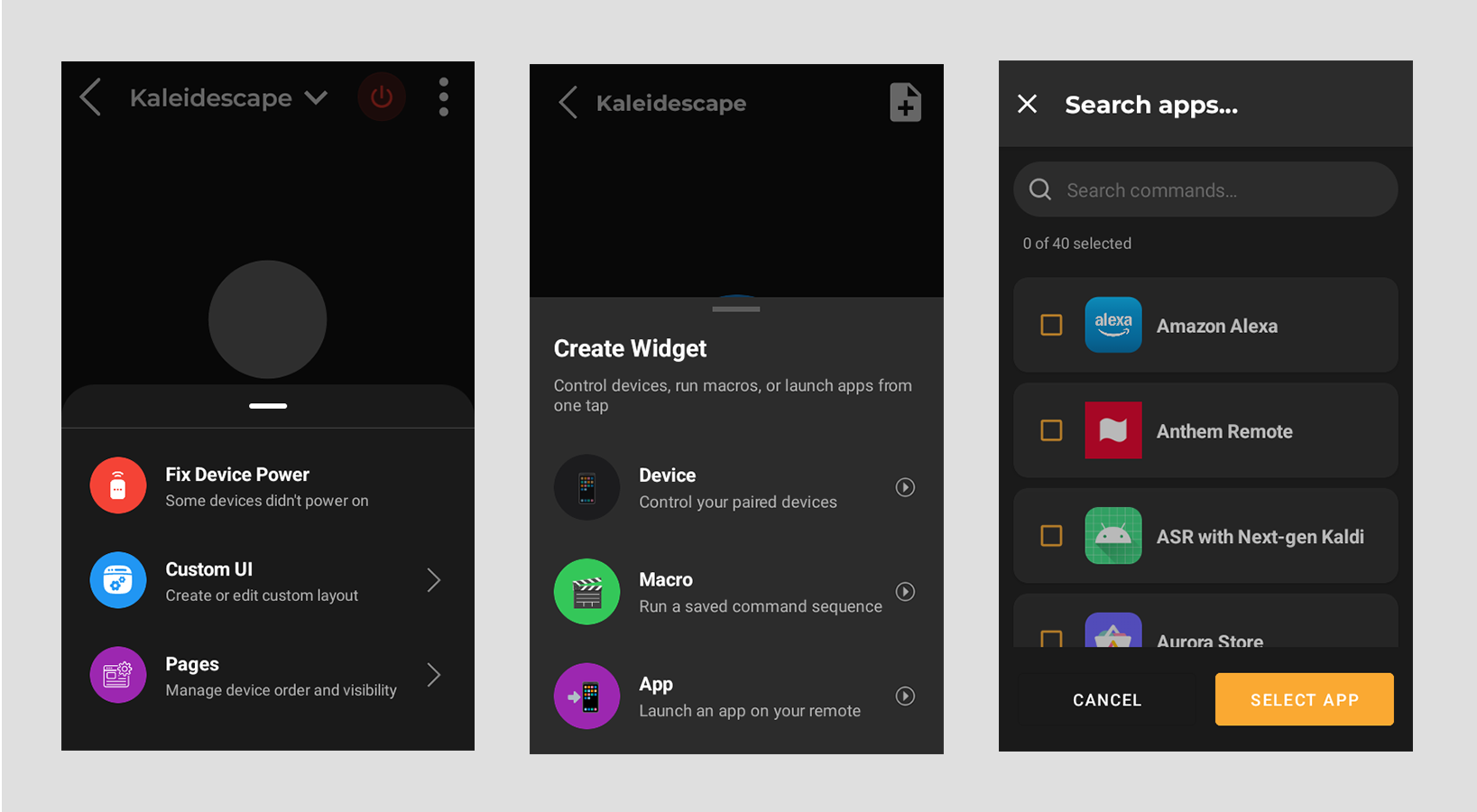
You can pin Android apps installed on Haptique directly inside a Macro's Custom UI so they are one tap away without leaving the Macro.
- On the Macro screen, open ⋮ → Custom UI.
- Tap + Add Component.
- Choose Install App from the component type picker.
- A multi-select list of apps installed on the device appears. Select the apps you want to include, then tap Done.
- The apps appear as a widget on your Custom UI. Tapping any app icon launches it instantly.
- Tap Save to keep the layout.
Tap the edit icon on the widget card in the setup screen to open the multi-select picker again and change which apps are included.
2. How to Add a Command as a UI Element in Custom UI
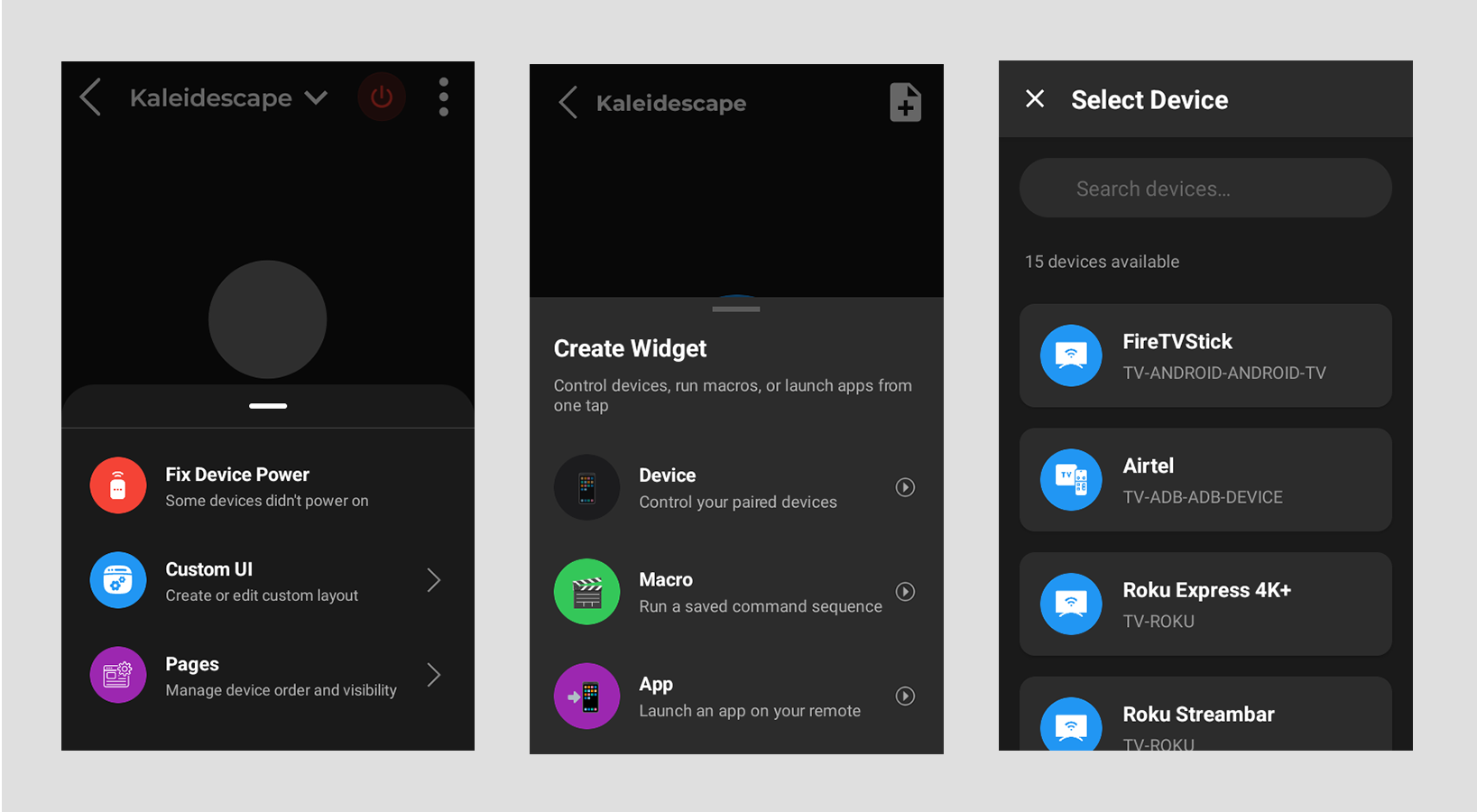
Individual device commands — like Volume, Mute, Navigation, Media controls, and more — can be added as interactive buttons directly on your Custom UI layout.
- Open ⋮ → Custom UI from the Macro screen.
- Tap + Add Component and choose Device Widget.
- Select the device you want to control from the device list.
- Choose a command category — available categories depend on what the device supports:
- Power Controls — Power On/Off
- Volume Controls — Volume Up/Down
- Mute Control — Mute toggle
- Input / Source — Input source selection
- Navigation Pad — D-pad (▲ ▼ ◀ ▶ + OK)
- Media Controls — Play, Pause, Forward, Rewind
- Channel Controls — Channel Up/Down
- Brightness Controls — Brightness Up/Down
- Color Temperature Controls — Temperature Up/Down
- Extra Commands — Pick individual commands (Home, Back, Menu, and other device-specific buttons) from a multi-select list
- The widget is added to your layout as a group of command buttons.
On the live Custom UI (not the setup screen), each Extra Commands button shows a small edit icon. Tap it to rename the button label. The change saves automatically and syncs to the server.
In the Extra Commands and Sequences widgets, press and hold any command button to drag it to a new position within that widget. Release to drop. The new order is saved automatically.
3. How to Add a Widget in Custom UI
Widgets are grouped control blocks you can arrange freely in your Custom UI layout. There are three widget types:
- Device Widget — A set of command buttons for a specific device category (see section 2 above). Multiple device widgets can be added — for example, a Volume widget for your TV and a separate Power widget for your AVR.
- Sequence Widget — Embeds one or more of your saved Sequences as buttons inside the layout. Select multiple sequences from the picker; they appear as a scrollable vertical list. Tap any sequence name to run it immediately. Long-press to drag and reorder sequences within the widget.
- Text Label — A custom heading or visual divider you can insert between widgets. Tap the T icon on the setup toolbar to add one. Options include text content, font size, style (Normal / Bold / Italic / Bold Italic), and alignment (Left / Center / Right). Bold labels automatically display a divider line beneath them. Long-press a Text Label on the live Custom UI to edit it inline.
In the Custom UI setup screen, press and hold any widget card to drag it up or down the list and rearrange your layout. Tap the delete icon to remove a widget (a confirmation prompt appears before deletion). Tap the edit icon to change which commands or sequences it contains.
4. How to Add, Remove, and Reorder Pages in a Macro
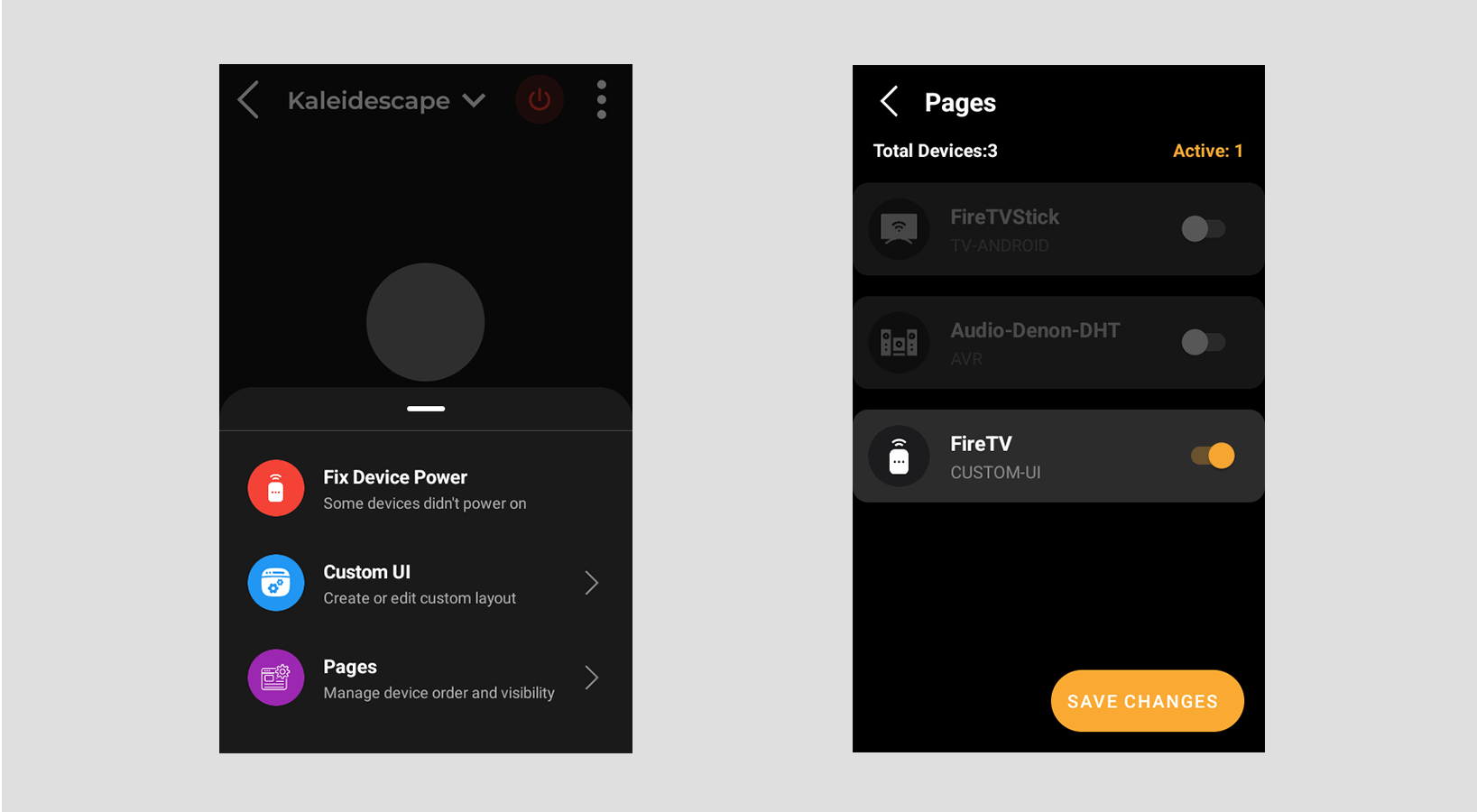
Each device in a Macro has its own control page. The Pages screen lets you choose which pages are visible and in what order they appear when you swipe through the Macro.
- On the Macro screen, tap ⋮ → Pages.
- You will see a list of all devices associated with this Macro, including the Custom UI page.
- Enable or disable a page — use the toggle next to each device to show or hide that page in the Macro. Disabled pages are dimmed and will not appear when you swipe through the Macro.
- Reorder pages — drag a device row up or down using the drag handle to change its position in the swipe sequence.
- Tap the Save button to apply your changes. The Macro immediately reloads with the updated page order and only the active pages visible.
Your page configuration is saved per Macro. If you later add a new device to the Macro in the configurator, it will appear as a new active page appended to the end of your existing order.
5. How to Use the Fix Feature if Your IR Device Did Not Turn On
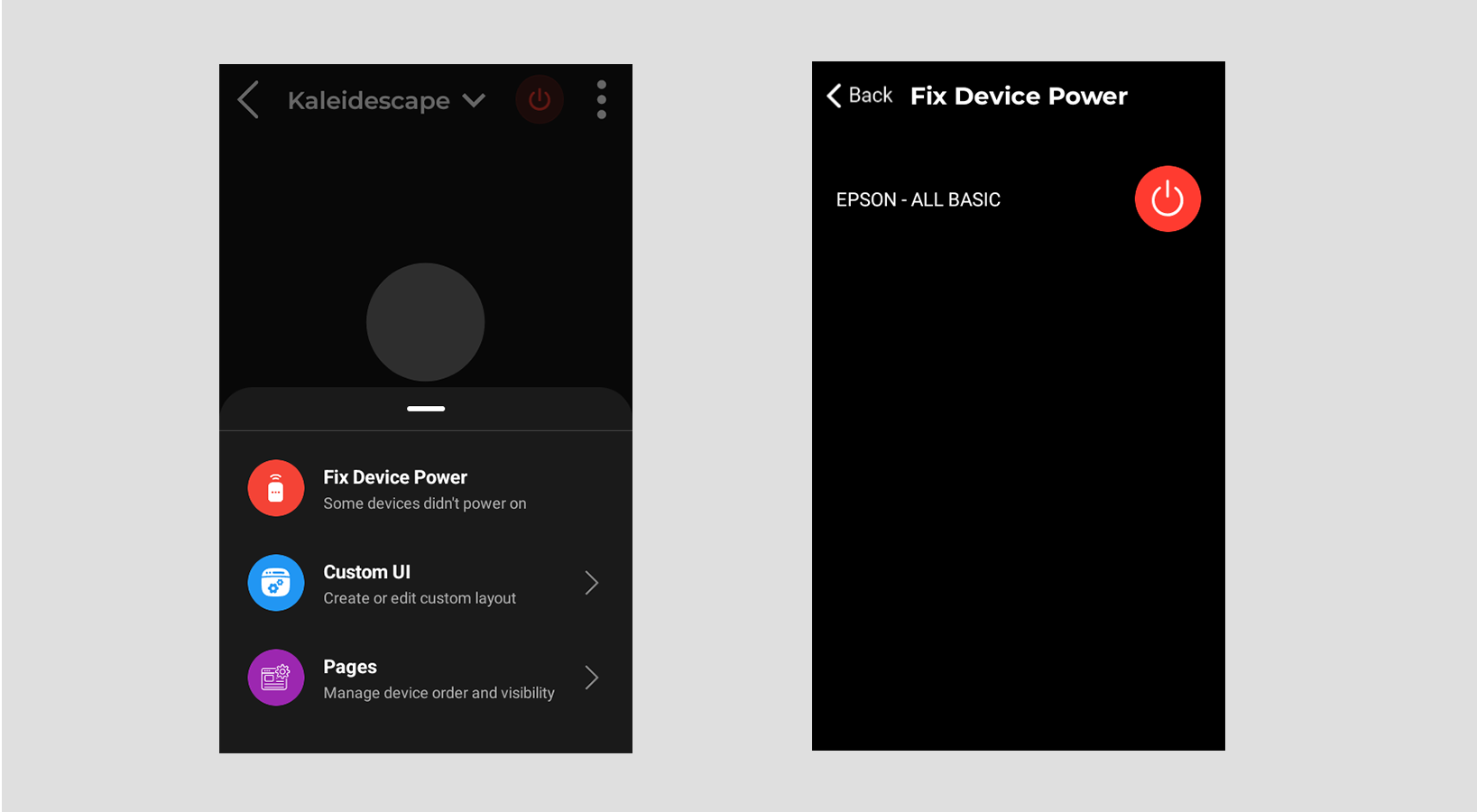
If an IR device in the Macro failed to power on when the Macro ran, the Fix option lets you manually send the Power On command to that device and confirm whether it responded — without re-running the entire Macro.
- On the Macro screen, tap ⋮ → Fix.
This option only appears when the Macro contains at least one IR device. - A list of all IR devices in the Macro is shown. Each device has a Power button next to it.
- Tap Power next to the device that did not turn on. Haptique sends the IR Power On command to that device immediately via the connected IR blaster.
- A confirmation prompt appears asking “Did your [Device Name] power on?”
- Tap Yes — the device is marked as powered on and the status is saved.
- Tap No — the prompt closes. Check that the IR blaster has a clear line of sight to the device and try again.
The Fix feature works only for devices controlled via IR. Make sure your IR blaster is connected and positioned with a clear line of sight to the device's IR receiver. If the Power command is not in the device's database, the Fix screen will show an empty list.
Return to the home screen
Long-press the physical Home key to return to Haptique home. A short Home press may instead send the selected device’s Home command, depending on its integration and key mapping.
Using Macros with RS90 app 4.0
The Macros page in OPUS 1 gives you quick access to your favourite routines. Build and manage routines in the Haptique configurator or web app, then sync the RS90 to use them.
Existing users: keep your setup
Older versions used Sequences as Macros. The new Macros system carries over those routines, including their names, logos, key mappings, custom UI, device pages and favourites. Existing favourites remain favourites. You do not need to recreate them.
Do not delete the original Sequences or rebuild your custom screens just to migrate. Sequences remain useful as command routines; Macros provide the activity and control experience.
Choose which Macros appear
- Sign in to the configurator or web app with the account linked to your RS90.
- Open Macros. Review your existing migrated routines before creating anything new. Older configurator versions may still show Sequence-based routines under Sequences.
- Mark a Macro as Favourite to show it on the remote, or leave its existing favourite setting unchanged.
- Save any changes, then use Settings > Sync or the refresh control on the RS90.
If an expected Macro is missing, check the account, favourite setting and sync first. Keep the original routine and contact support if it is still absent; do not delete it as a troubleshooting step.
Open a Macro and choose an action
Tap a Macro tile once to open its options. Available actions depend on the Macro type and current state:
- Execute: run its configured ON routine.
- Control Page: open its controls without repeating the ON routine when available.
- Key Lock: keep the physical buttons assigned to this Macro.
- Custom UI: edit custom controls directly from the new Macro’s options, without running it first.
- Pages: manage which device pages appear and their order.
- Fix: available for supported IR devices, to retry a missed power command.
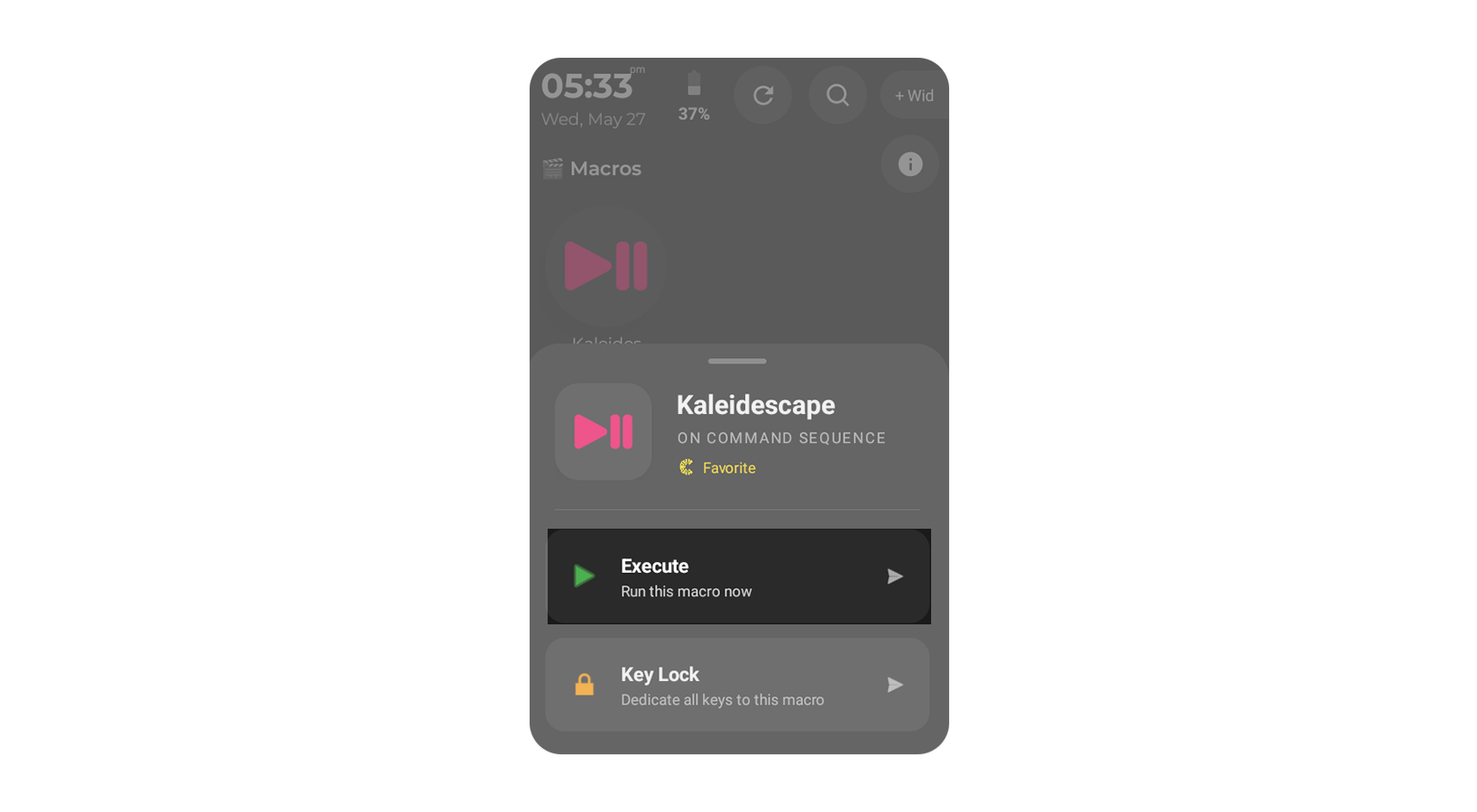
Run and control your routine
- Choose Execute when you want to send the ON and setup commands.
- Wait for the configured steps to finish, then use the Macro control screen and swipe between its device pages.
- If the devices are already on, choose Control Page when available to avoid repeating commands.
The physical buttons use the Macro’s saved key mappings. Your custom UI and page preferences remain associated with that Macro.
Turn off a Macro
Use the Macro’s power-off control and confirm when prompted. This sends the configured OFF routine; only the devices and commands included in that routine are affected. Wait for it to finish before starting another routine.
Return home
Long-press the physical Home key to return to the home screen. Opening Custom UI or Pages does not require executing the Macro.

